xTool F2 Ultra UV PLA Settings: 3D Print Colour Chart (2026)
Sourced xTool F2 Ultra UV PLA settings for marking 3D prints by filament colour: power, speed, lines per cm and frequency, plus tips, safety and troubleshooting.
8 min read
On this page
- Quick answer: the best starting settings
- xTool F2 Ultra UV PLA settings chart by colour
- What creators found on video
- Watch the best tests
- Setup tips from the videos
- How UV marks PLA
- Which filaments work best
- Step-by-step: marking a 3D print
- 1. Print a flat face
- 2. Protect the machine
- 3. Don't use the stock material test
- 4. Focus
- 5. Test
- 6. Mark and clean
- Safety
- Troubleshooting
- FAQ
- What are the best xTool F2 Ultra UV PLA settings?
- Does xTool Studio have a PLA preset for the F2 Ultra UV?
- Why does the same colour mark differently between brands?
- Can the stock material test burn through PLA?
- Does UV work on PETG and other filaments?
- Are UV marks on PLA durable?
- Top layer or bottom layer?
- Is it safe to laser PLA?
- What settings work for a photo on black PLA?
- What speed range should I test on PLA?
- Final thoughts
- Sources
Last updated: October 28, 2026
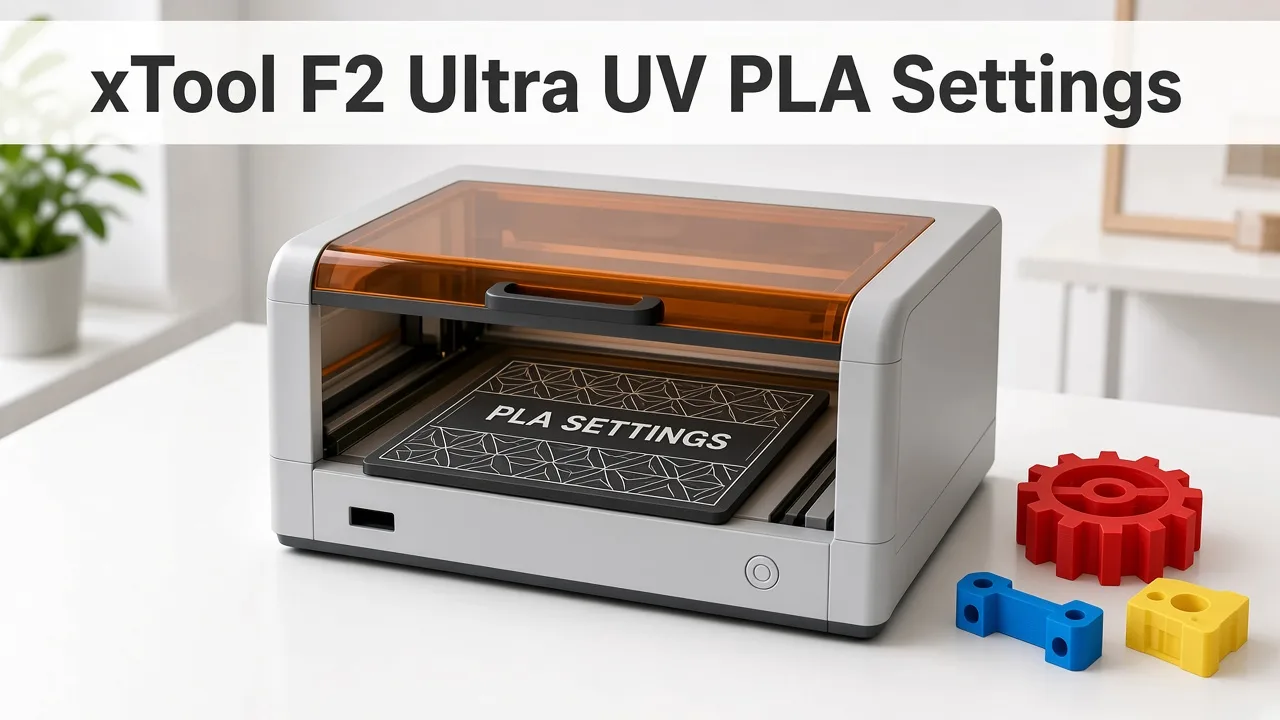 A UV laser can mark 3D printed PLA with very little melting. (AI-generated illustration, generic machine.)
Quick facts
- Machine: xTool F2 Ultra UV, 5W, 355 nm UV galvo laser
- Black or white PLA: 50% power, 1000 mm/s, 240 lines/cm, 40 kHz, 1 pass (Embrace Making)
- Colour range tested: 30–70% power, 200–3650 mm/s, all at 40 kHz
- xTool Studio PLA preset: none (xTool)
- Biggest factor: the filament's pigment, not the plastic itself (CNC Kitchen)
- Best filaments: solid, opaque, matte
- Warning: the stock material test can burn through PLA
- Safety: ventilate and filter fumes
Quick answer: the best starting settings
For black or white PLA, start at 50% power, 1000 mm/s, 240 lines/cm, 40 kHz, 1 pass.
These are for medium text and graphics. Very thin lines or big solid fills may need 10–20% more power or a slower speed (Embrace Making).
xTool F2 Ultra UV PLA settings chart by colour
All settings below come from Embrace Making's tests on 2 mm PLA test cards, using vector graphics.
| PLA colour (brand tested) | Power | Speed | Lines per cm | Frequency | Passes |
|---|---|---|---|---|---|
| Black (generic) | 50% | 1000 mm/s | 240 | 40 kHz | 1 |
| White (Creality Hyper) | 50% | 1000 mm/s | 240 | 40 kHz | 1 |
| Red (generic) | 70% | 2250 mm/s | 240 | 40 kHz | 1 |
| Blue (Creality Hyper) | 70% | 2750 mm/s | 240 | 40 kHz | 1 |
| Green (Bambu Lab Basic) | 60% | 2250 mm/s | 240 | 40 kHz | 1 |
| Pink (Creality) | 60% | 1000 mm/s | 240 | 40 kHz | 1 |
| Neon green (Bambu Lab Basic) | 50% | 3650 mm/s | 240 | 40 kHz | 1 |
| Grey (generic) | 55% | 1000 mm/s | 240 | 40 kHz | 1 |
| Brown (Polymaker) | 30% | 1500 mm/s | 240 | 40 kHz | 1 |
| Yellow (generic) | 60% | 1000 mm/s | 240 | 40 kHz | 1 |
| PETG, ASA, TPU, PC | not stated | not stated | not stated | not stated | not stated |
Note: The same colour from another brand can behave very differently. Treat each spool as a new material and test it.
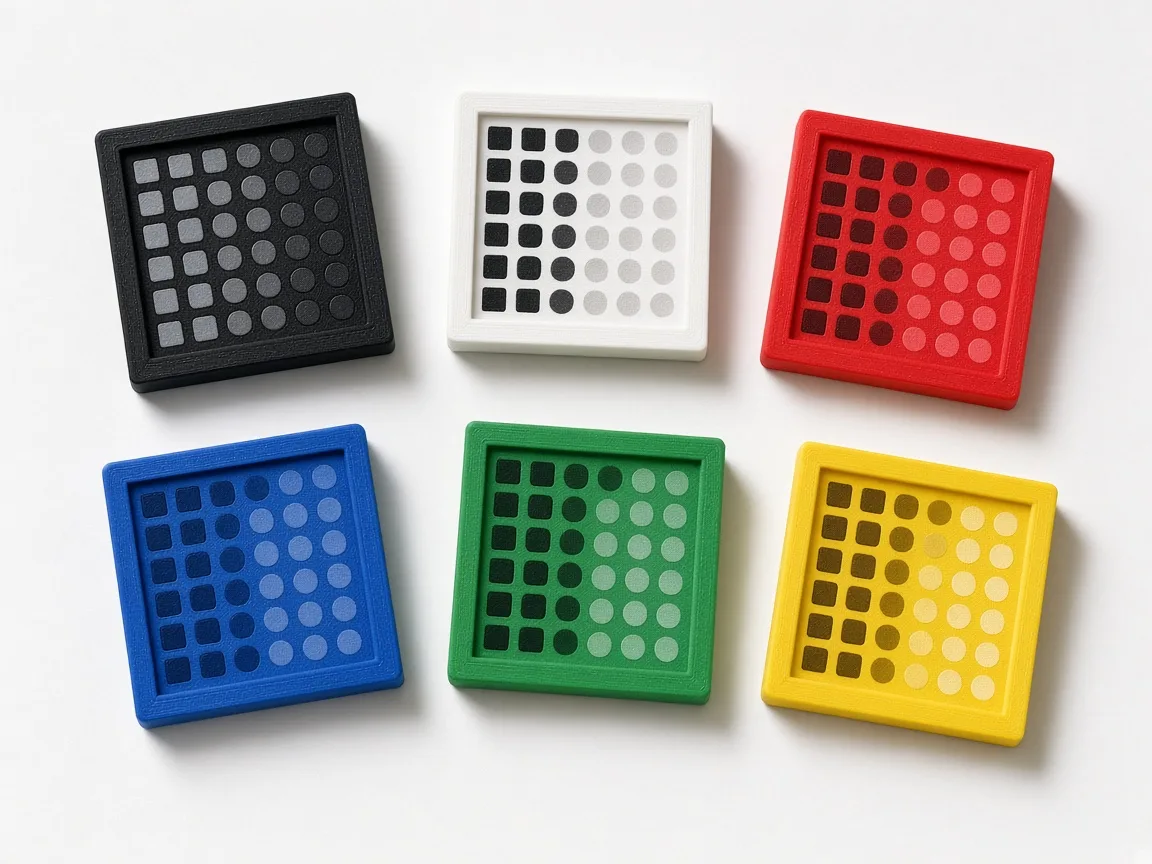 A test card per filament shows which settings give the best contrast. (AI-generated illustration.)
What creators found on video
We read the transcripts of the xTool F2 Ultra UV videos below. Settings are what each creator said; timestamps jump to that moment. Videos that turned out to use a different laser were left out.
| Channel | Video | Material | Settings (as said) | Result / tip |
|---|---|---|---|---|
| Embrace Making | Plastics Guide | Black PLA, photo (grayscale) | Power range 0–75%, dot duration 200 µs, lower DPI (value not stated) | First try at 300 µs looked over-processed; third run "nailed it" |
| Embrace Making | Plastics Guide | Golf ball (plastic, not PLA) | 50%, 2250 mm/s, 1 pass, 240 lines/cm | A first guess that worked |
| CNC Kitchen | Is This Laser the 3D Printing Solution? | PLA, PETG, ASA, TPU, PC test plates | Test range 10–100% power, 250–4500 mm/s | Best changes in the lower third of the speed range; clean band between melt and no mark |
Patterns across creators:
- Photos need a power range, not one value: Embrace Making used 0–75% with a short 200 µs dot duration.
- Speeds well under the 15,000 mm/s maximum gave the useful results (CNC Kitchen).
- Expect several test pieces before a photo looks right (Embrace Making).
Watch the best tests
Dialling in a photo on black PLA over three attempts. (Video: Embrace Making on YouTube.)
Test ranges and how UV marks different filaments. (Video: CNC Kitchen on YouTube.)
Setup tips from the videos
- Invert photos for black PLA so the subject marks white (Embrace Making).
- Use a fixture/template for repeat parts like ornaments (Embrace Making).
- Wear wavelength-rated glasses: UV light is invisible, and what you see is only the glow (CNC Kitchen).
- Extract fumes when marking plastic (CNC Kitchen).
How UV marks PLA
- Several effects. The laser can bleach pigment, foam the surface, char it, melt it or vaporise it (Hackaday, summarising CNC Kitchen).
- Pigment matters most. CNC Kitchen found the result depends more on pigments and additives than the base polymer.
- Light and dark marks. Some colours can give both bright and dark marks with different settings (Embrace Making).
- Less heat damage. CNC Kitchen found the UV laser gave the cleanest marks with the least thermal damage of the lasers tested.
Which filaments work best
- Solid, opaque and matte filaments mark better. If a 1–2 layer print lets light through, it may mark poorly (Embrace Making).
- Some whites and light greys are hard. CNC Kitchen found one brand's white marked dark and clean, another brand's white much worse. A light grey gave one of the worst contrasts.
- Change the colour if needed. Sometimes switching filament is smarter than fighting the settings (CNC Kitchen).
Focus the surface before you trust a power number. The method is in How to Focus a UV Laser Correctly. Build the squares the way How to Calibrate the xTool F2 Ultra UV describes. What to reorder is in Best UV Laser Blanks to Buy and Sell. A repeatable position is the point of self-centering jigs for the F2 Ultra UV, and the smoke is the point of inline fans for the F2 Ultra UV. If you are still choosing the machine, start with the desktop UV laser buying guide.
Step-by-step: marking a 3D print
1. Print a flat face
- A smooth build plate gives the cleanest marking surface. Textured faces reduce quality (MakerWorld creator).
2. Protect the machine
- Put a metal plate under the part in case the beam goes through (MakerWorld creator).
3. Don't use the stock material test
- It can burn through PLA. Use a PLA test card with lower settings instead.
4. Focus
- Autofocus on the surface you'll mark.
5. Test
- Start from the colour chart. Adjust power by 5–10%.
6. Mark and clean
- Wipe soot off with isopropyl alcohol. CNC Kitchen found the mark itself stays.
Safety
- Ventilate. Use extraction and air filtration when marking plastic (Embrace Making).
- Watch for burning. Too much power causes burning and a stronger smell.
- Never leave a job running unattended.
Troubleshooting
| Problem | Likely cause | Fix |
|---|---|---|
| Low contrast | Pigment doesn't react well | Try more power or another filament brand |
| Burnt, smoky mark | Too much energy | Lower power, raise speed |
| Thin lines missing | Energy spreads away | +10–20% power or slower speed |
| Large fills patchy | Energy spread over area | +10–20% power |
| Laser went through the part | Settings too strong, thin print | Lower power; metal plate underneath |
| Uneven mark | Textured surface | Mark the smooth bed side |
| Dark ends on hatch lines | Galvo slows at line ends | Expected; CNC Kitchen notes skywriting would fix it |
FAQ
What are the best xTool F2 Ultra UV PLA settings?
For black or white PLA, Embrace Making's starting point is 50% power, 1000 mm/s, 240 lines/cm, 40 kHz, 1 pass. Other colours need different settings.
Does xTool Studio have a PLA preset for the F2 Ultra UV?
No. xTool's own plastic-engraving guide notes there are currently no PLA presets in xTool Studio.
Why does the same colour mark differently between brands?
CNC Kitchen found pigments and additives matter more than the base plastic. White PLA from one brand marked dark, another much worse.
Can the stock material test burn through PLA?
Yes. A MakerWorld creator warns the stock UV material test can burn through PLA into the machine. Put a metal plate underneath.
Does UV work on PETG and other filaments?
CNC Kitchen tested PLA, PETG, ASA, TPU and PC and found the UV laser worked on the widest range. PETG-specific F2 Ultra UV settings are not stated in our sources.
Are UV marks on PLA durable?
In CNC Kitchen's test, isopropyl alcohol only removed soot, and scratching did not remove much contrast.
Top layer or bottom layer?
Embrace Making saw small differences between top and bottom layers on some colours. A smooth print bed surface gives cleaner results.
Is it safe to laser PLA?
Use ventilation and air filtration. Too much power causes burning and stronger smells.
What settings work for a photo on black PLA?
Embrace Making ended with a 0–75% power range, 200 µs dot duration and a lower DPI. Longer dot durations looked muddy.
What speed range should I test on PLA?
CNC Kitchen tested 250–4500 mm/s at 10–100% power and found the useful marks in the lower third of the speed range.
Final thoughts
Start black and white PLA at 50% power, 1000 mm/s, 240 lines/cm and 40 kHz, then use the colour chart for others. Pick opaque, matte filament, skip the stock material test, and make a test card for every new spool.
Sources
- Embrace Making, F2 Ultra UV 3D printed PLA settings: https://embracemaking.com/blogs/resources/xtool-f2-ultra-uv-3d-printed-pla-settings
- xTool Support, Plastic Engraving: Master 3D Prints and Acrylic: https://support.xtool.com/article/3269
- xTool Academy, Plastic Engraving on the F2 Ultra UV: https://support.xtool.com/academy/course?id=315
- MakerWorld, F2 Ultra UV PLA engraving test kit: https://makerworld.com/en/models/2613827-xtool-f2-ultra-uv-pla-engraving-test-kit
- xTool Support, Processing Parameters for F2 Ultra UV: https://support.xtool.com/article/2699
- CNC Kitchen, Is this laser the 3D printing solution we needed?: https://www.cnckitchen.com/blog/is-this-laser-the-3d-printing-solution-we-needed
- Hackaday, All the different lasers and how well they mark 3D prints: https://hackaday.com/2026/06/24/all-the-different-lasers-and-how-well-they-mark-3d-prints/
- Batch Studio, Laser engrave PETG: https://www.batchmade.studio/laser-engrave-petg
- Batch Studio, F1 Ultra marking settings: https://www.batchmade.studio/f1-ultra-marking-settings
- xTool Support, F2 Ultra UV FAQs: https://support.xtool.com/article/2870
- Tom's Hardware, F2 Ultra UV review: https://www.tomshardware.com/maker-stem/xtool-f2-ultra-uv-dual-laser-engraver-review
- Embrace Making, xTool F2 ULTRA UV Engraving Plastics Guide - 3D Printed PLA, ABS, Acrylic, Golf Balls (YouTube): https://www.youtube.com/watch?v=2h-uN5BJ5g0
- CNC Kitchen, Is This Laser the 3D Printing Solution We Needed? (YouTube): https://www.youtube.com/watch?v=jA-E5CGcBxI
Related settings
- xTool F2 Ultra UV Acrylic Settings: Clear, Black & White Chart (2026)
- xTool F2 Ultra UV Ceramic Settings: Tiles & Mugs Chart (2026)
- xTool F2 Ultra UV Glass Settings: Flat Glass & Rotary Chart (2026)
- xTool F2 Ultra UV Slate Settings: Power, Speed & Frequency Chart (2026)
- xTool F2 Ultra UV Tumbler Settings: Powder-Coated & Stainless (2026)
- Can a UV Laser Engrave Slate?
- Can a UV Laser Engrave Glass?
Keep reading
xTool F2 Ultra UV Tumbler Settings: Powder-Coated & Stainless (2026)
Sourced xTool F2 Ultra UV tumbler settings for powder-coated and bare stainless tumblers on the rotary: power, speed, lines per cm, frequency and the focus offset trick.
Read more9 min read
xTool F2 Ultra UV Slate Settings: Power, Speed & Frequency Chart (2026)
Sourced xTool F2 Ultra UV slate settings for power, speed, passes, lines/cm and frequency, plus a test-grid method, photo tips and troubleshooting.
Read more10 min read
xTool F2 Ultra UV Glass Settings: Flat Glass & Rotary Chart (2026)
Sourced xTool F2 Ultra UV glass settings for frosted surface engraving on flat glass, pint glasses and wine glasses, plus focusing tips, glass types and fixes.
Read more16 min read